OpenSourceGen
Turn a Photo into Video with LTX-2.3
Show the prompt
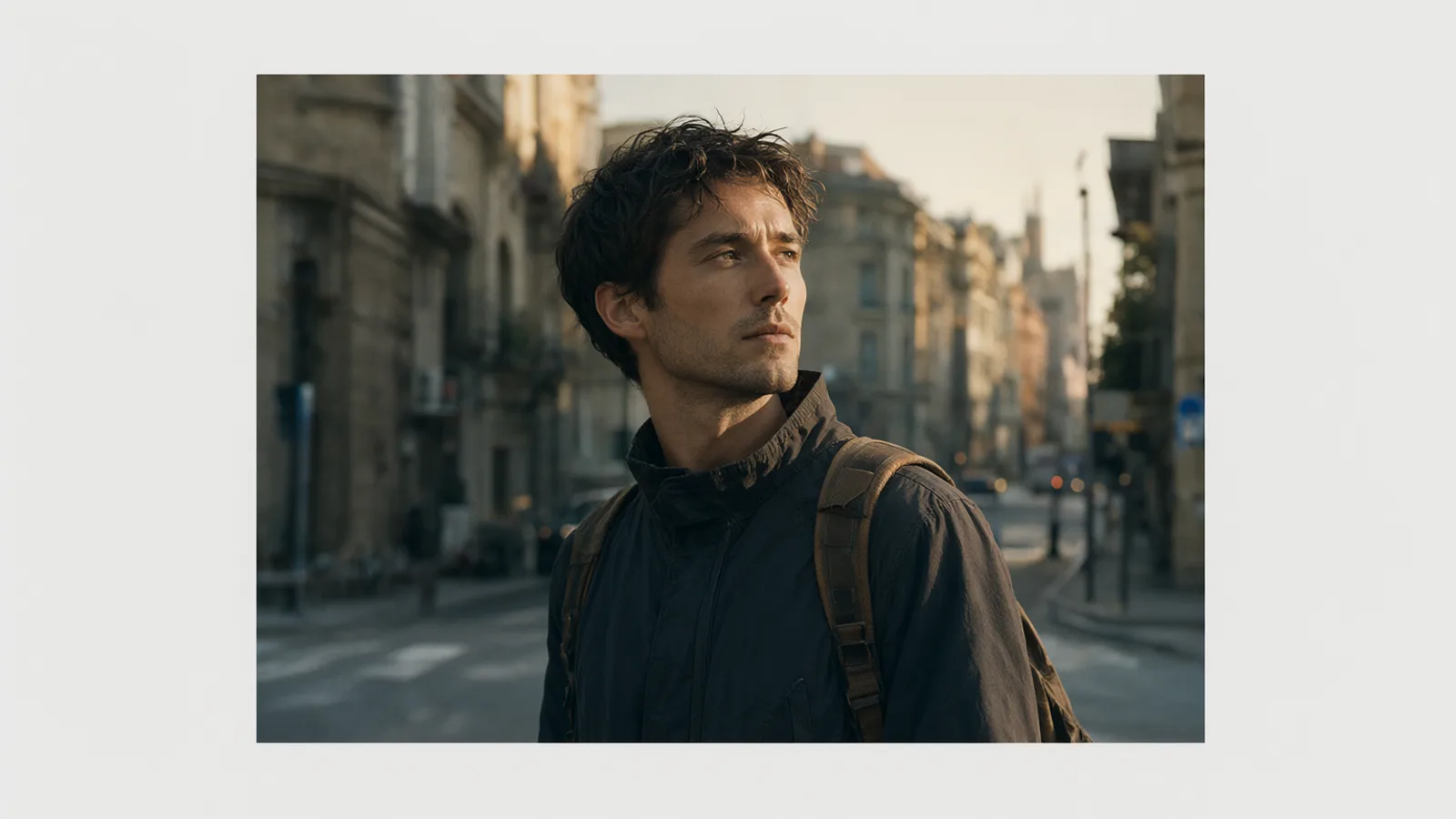
A single high-resolution photograph of a person standing on a quiet city street at dusk, soft golden side lighting, shallow depth of field, realistic film grain. The image sits centered on a clean light-gray background with generous negative space around it, wide landscape composition, no text or logos.
LTX-2.3 turns a still photo into video by anchoring the entire clip to the reference image encoded at frame zero. The recommended production route is the two-stage TI2VidTwoStagesPipeline: generate a low-resolution base then apply the spatial upsampler and distilled LoRA. This guide gives the exact settings, frame rules, motion prompts, and fixes for freezing or subject drift that work on OpenSourceGen and in ComfyUI.
Why LTX-2.3 Excels at Image-to-Video
LTX-2.3, released February 23, 2026, improves image-to-video by reducing freezing, the Ken Burns effect, unexpected cuts, and by improving visual consistency from the input frame the model card.
Image-to-video generation anchors the entire clip to the reference image encoded at frame zero. The model uses that single frame as the starting point for all motion, lighting, and subject details that follow. This anchoring produces tighter adherence than earlier approaches because every later frame is conditioned on the exact pixels and composition present at the start How to Set Up an Image-to-Video Workflow.
The model also supplies native portrait support up to 1080x1920. It was trained on vertical data, so you set the resolution directly for 9:16 output instead of rotating or cropping after generation the model card.
These changes matter because earlier models often produced static output, drifting subjects, or abrupt cuts when the first frame contained complex detail. LTX-2.3 reduces those artifacts by design. The result is video that stays locked to the supplied photo while adding controlled motion and camera movement.
OpenSourceGen's Animate Image tool runs the LTX-2.3 image-to-video pipeline directly, so the same anchoring and portrait handling apply when you upload a photo there.
Prepare Your Input Photo
Image quality, framing and lighting in your starting photo directly affect every frame that LTX-2.3 produces because the model anchors generation to the reference image encoded at frame zero image-to-video workflow.
Resolution and dimension rules
- Width and height must be divisible by 32 for one-stage pipelines and by 64 for the two-stage TI2VidTwoStagesPipeline.
- Pad the shorter side with -1 values if needed, then crop the output to the original aspect ratio.
- Frame count must satisfy (F-1) % 8 == 0; common valid counts are 9, 17 and 25.
Portrait orientation
LTX-2.3 adds native portrait support up to 1080×1920, so set the resolution directly when you need 9:16 output LTX-2.3 and LTX Desktop release.
Practical checks before upload
Open your photo in an editor and confirm the pixel dimensions meet the divisibility rules above. Adjust framing so the subject fills the intended area without empty borders that the model must later invent. Ensure even lighting across the frame; harsh shadows or blown highlights on the input often carry through as artifacts. These steps keep the generated motion consistent with the original still without requiring later fixes.
Upload an image and a motion prompt to OpenSourceGen's Animate Image tool and generate a video in one click.Animate Image →
Recommended Settings and Parameters
LTX-2.3 image-to-video uses two checkpoints that trade speed for quality. The distilled checkpoint runs at 8 steps with CFG set to 1.0 for fast iteration. The full dev checkpoint requires 20–50 steps and produces final renders. Choose distilled when testing motion and dev when you need maximum detail.
Core generation values
- CFG scale: 2.0–5.0 on the full model for balanced motion and adherence.
- STG scale: 0.5–1.5 to control temporal coherence across frames.
- Conditioning strength: start at 0.8; lower the value if motion freezes, raise it if the subject drifts from the input photo.
Frame count must satisfy (F-1) % 8 == 0, so valid counts begin at 9, 17, 25 and continue upward. Width and height must be divisible by 32 for one-stage pipelines and by 64 for the two-stage TI2VidTwoStagesPipeline. One-stage is faster on lower-VRAM hardware; two-stage doubles the configured dimensions.
Hardware and runtime tips
Minimum recommended GPU memory is 32 GB. Set the environment variable PYTORCH_CUDA_ALLOC_CONF=expandable_segments:True and enable FP8 quantization to reduce VRAM usage by roughly 40 %. These steps prevent out-of-memory errors when running the spatial upsampler in Stage 2.
| Setting | Distilled | Dev |
|---|---|---|
| Steps | 8 | 20–50 |
| CFG | 1.0 | 2.0–5.0 |
| Typical use | Drafts | Final output |
Start with the distilled checkpoint, a 17-frame count at 768×512, CFG 3.0 and STG 1.0. Adjust conditioning strength after the first run if the output shows freezing or subject movement away from the reference frame.
Crafting an Effective Motion Prompt
LTX-2.3 image-to-video prompts describe motion and camera behavior after the first frame rather than restating visible content. Keep the text under 200 words in one paragraph, start with the main action, and use specific verbs for movement, speed, and changes.
Core rules
- Begin with the primary motion the subject performs.
- Include camera moves, timing, environmental shifts, and any audio.
- Avoid describing the static image itself.
The model documentation recommends this structure because the reference frame already supplies appearance and lighting. The prompting guide adds that motion verbs produce clearer temporal coherence than vague phrases.
Worked example
camera slowly pushes in as the woman turns her head left, stands, and walks toward the street while her coat sways; rain starts falling and cars pass in the background; soft ambient street sounds and distant trafficThis prompt specifies camera direction, subject action, environmental change, and audio without repeating the input photo. Adjust conditioning strength if motion freezes or the subject drifts from the source image. The X post on prompting shows that listing exact speed and camera behavior reduces unwanted Ken Burns effects.
Step-by-Step: Animate Image Tool on OpenSourceGen
OpenSourceGen's Animate Image tool runs the LTX-2.3 image-to-video pipeline directly. Upload a photo, add a motion prompt, select the model and parameters, then generate. The route below matches the production settings from the model's two-stage pipeline.
- Go to the Animate Image page and upload your reference photo.
- Enter the motion prompt in the text field. Keep it under 200 words, start with the main action, and describe only movement, camera work, speed, and audio that occurs after the first frame.
- Click Generate. The system returns a clip that stays anchored to the input image at frame zero.
ComfyUI Workflow Alternative
ComfyUI ships native LTX-2.3 nodes that replicate the official image-to-video pipelines.
Update and load the template
- Run
git pullinside your ComfyUI folder and restart to pull the latest LTX-2.3 nodes. - In the UI, open Template Library > Video and choose the LTX-2.3 Image-to-Video (I2V) template.
- Load the workflow; it contains the reference-image encoder at frame zero plus the required latent upscaler nodes.
The template defaults to the faster TI2VidOneStagePipeline. Switch to the production TI2VidTwoStagesPipeline by adding the spatial upsampler and distilled LoRA after the base stage; the second stage doubles the configured dimensions.
One-stage versus two-stage
| Pipeline | Speed | VRAM use | Output size | When to use |
|---|---|---|---|---|
| TI2VidOneStagePipeline | Faster | Lower | Configured width/height | Drafts, lower-VRAM hardware |
| TI2VidTwoStagesPipeline | Slower | Higher | 2× configured dimensions | Final renders, best quality |
Reference workflows for both pipelines appear in the ComfyUI-LTXVideo node pack. The motion prompt rules and conditioning-strength adjustments described earlier apply unchanged when you run the workflow locally.
git clone https://github.com/comfyanonymous/ComfyUI
cd ComfyUI/custom_nodes
Common Mistakes and Fixes
Most LTX-2.3 image-to-video failures trace to three parameter mismatches and one prompt habit.
Freezing output
The model locks the first frame when conditioning strength is set too high. Lower the value until motion appears. Start at 0.8 and drop by 0.1 increments while keeping the distilled checkpoint at 8 steps and CFG=1.
Subject drift
When the generated subject moves away from the input photo, raise conditioning strength. Increase from the default 1.0 in 0.2 steps until the reference frame regains control. This adjustment works on both the one-stage and two-stage pipelines.
Frame count or resolution errors
Frame counts must satisfy (F-1) % 8 == 0. Resolutions must be divisible by 32 for one-stage and by 64 for two-stage. Pad dimensions with -1 then crop the result rather than forcing non-divisible values. The error appears as a silent failure or black frames.
Prompt that describes the visible image
Write only motion, camera movement, speed, and any audio after frame zero. Describing objects already present in the photo wastes tokens and reduces coherence. Replace "a woman in a red dress standing in a room" with "camera slowly pushes in as she turns her head and steps forward."
Test changes one at a time on the distilled checkpoint before switching to the dev checkpoint for final renders. image-to-video workflow
Frequently asked questions
What frame counts work with LTX-2.3 image-to-video?
Frame counts must satisfy (F-1) % 8 == 0. Valid examples are 9, 17, 25 and higher. One-stage pipelines accept resolutions divisible by 32; two-stage requires divisibility by 64.
How do I fix frozen motion in LTX-2.3 video?
Lower the conditioning strength so the model follows the reference image less rigidly. Also ensure the prompt contains specific motion verbs and camera moves rather than describing the static content of the first frame.
Which checkpoint should I use for quick tests versus final renders?
Use the distilled checkpoint for iteration; it runs in 8 steps at CFG=1. Switch to the full dev checkpoint and 20-50 steps only for final high-quality renders.
Can LTX-2.3 generate audio with the video?
Yes. Include ambient sound, music or dialogue in quotes inside the prompt and the model produces synchronized audio and video in one pass.
Animate your photo with LTX-2.3
Upload an image and a motion prompt to OpenSourceGen's Animate Image tool and generate a video in one click.
Open Animate ImageSources
Researched and drafted with AI assistance by the OpenSourceGen team's editorial pipeline, from the sources listed above. Model licences, prices and versions change — check the linked pages before relying on them. Spotted a mistake? Tell us on Discord.