OpenSourceGen
ComfyUI "CUDA out of memory": fixes that work
Show the prompt
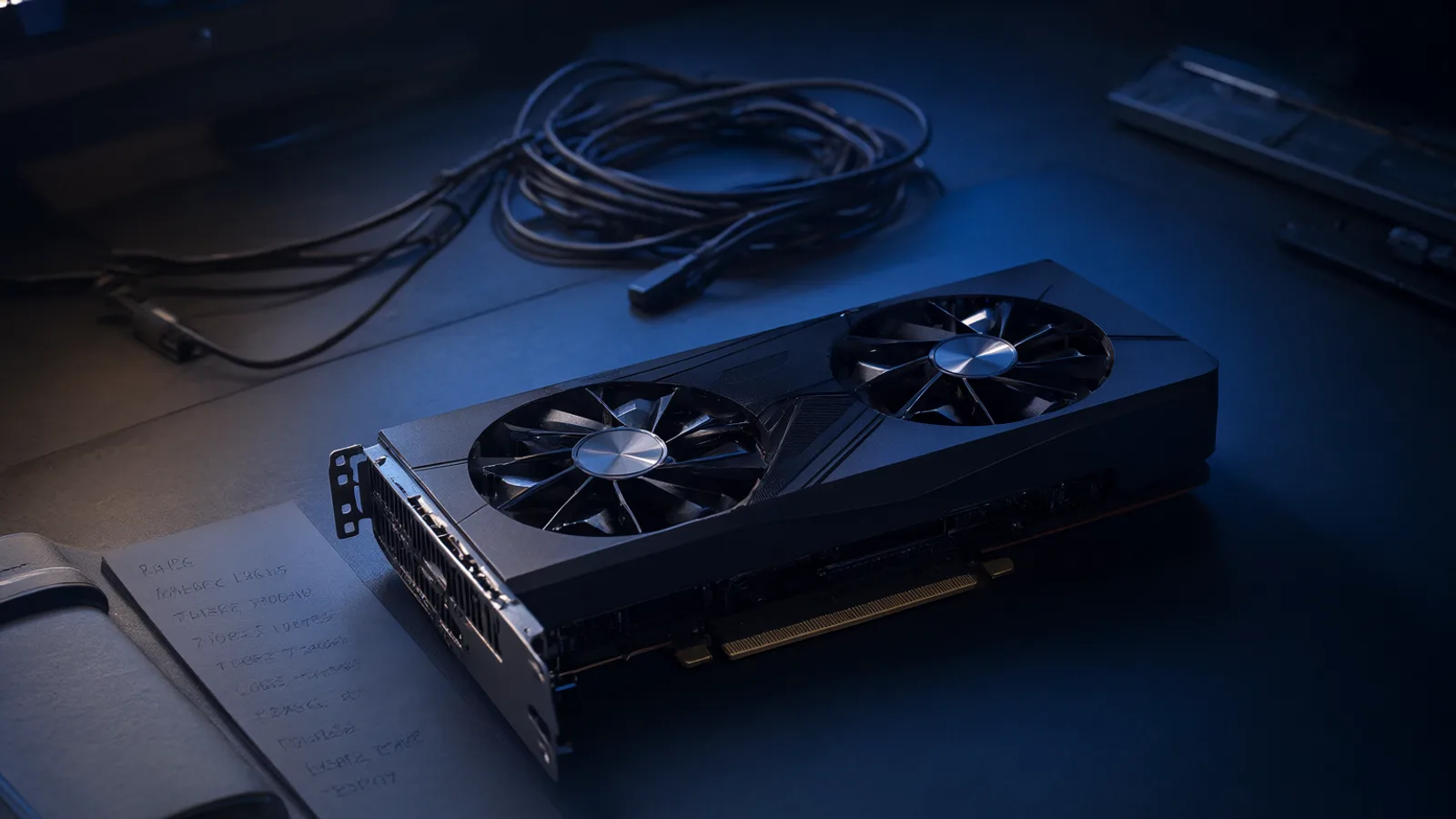
A dark desk with a single GPU card under cool blue desk lighting, cables neatly coiled, a small notebook open beside it showing handwritten memory numbers, wide landscape framing, realistic photo style, no text or logos.
The error torch.cuda.OutOfMemoryError appears when ComfyUI tries to allocate more VRAM than an 8-16 GB card has free. Most cases clear after switching to a GGUF Q4_K_S checkpoint, enabling --lowvram, and replacing the final decode node with its tiled version. The steps below rank fixes by how often they succeed on cards running 2026 models such as FLUX.2 and Qwen Image 2.1.
Exact ComfyUI CUDA out of memory error messages
The torch.cuda.OutOfMemoryError appears when ComfyUI requests more VRAM than remains free on an 8-16 GB card. Two strings match what users copy into search bars most often.
torch.cuda.OutOfMemoryError: CUDA out of memory. Tried to allocate 2.00 GiB. GPU 0 has a total capacity of 15.92 GiB of which 1.10 GiB is free.torch.cuda.OutOfMemoryError: CUDA out of memory. Tried to allocate 1024.00 MiB (GPU 0; 8.00 GiB total capacity; 6.84 GiB already allocated).Search phrases that lead to this page include:
- ComfyUI "CUDA out of memory"
- torch.cuda.OutOfMemoryError ComfyUI
- ComfyUI out of memory 8GB
- ComfyUI VAE decode CUDA out of memory
The 15.92 GiB total and 1.10 GiB free numbers recur because Windows and other processes already occupy several gigabytes before ComfyUI starts. The 1024 MiB allocation attempt on an 8 GiB card shows the same pattern at lower scale. Both messages point to the same root: an allocation request that exceeds the remaining free memory reported by the driver.
Users who paste the full error into a search engine usually see these two variants first. The numbers change with card size and current load, yet the structure stays identical. CUDA Out of Memory Fix (2026) and Fix torch.cuda.OutOfMemoryError in ComfyUI on 8GB and 12GB NVIDIA GPUs record the same strings from recent reports.
Fastest fix for ComfyUI CUDA out of memory on 8-16 GB GPUs
The change that clears the error for most 8-16 GB cards running 2026 models is to load a GGUF Q4_K_S checkpoint instead of the FP16 original, start ComfyUI with the flags --lowvram --reserve-vram 1.5, and replace the final decode node with VAE Decode (Tiled) set to tile_size=512.
People usually keep the original BF16 or FP16 checkpoint and run the default launch command; that single decision accounts for the majority of OOM reports on consumer GPUs.
Apply the three steps in this order:
- In the workflow replace the standard UnetLoader with UnetLoaderGGUF and load the Q4_K_S file (6.8 GB on disk). Pair it with DualCLIPLoaderGGUF. This halves the memory footprint of a 20 B model.
- Shut down ComfyUI and relaunch with the exact command below.
python main.py --lowvram --reserve-vram 1.5The --lowvram flag moves text encoders to CPU when VRAM pressure rises; --reserve-vram 1.5 keeps 1.5 GB free for Windows overhead.
- Swap VAE Decode for VAE Decode (Tiled) and set tile_size=512. This prevents the decode-stage spike that appears at 95-100 % progress on 1024×1024 latents.
After these three changes, run the same prompt again. If the error persists, move to the next section.
OpenSourceGen generates the same models on cloud GPUs so the only limit is your prompt.Create Image →
Check VRAM usage with nvidia-smi before starting ComfyUI
Leftover processes often hold VRAM that ComfyUI needs for its first allocation, triggering the error even on an otherwise empty card.
Run these steps in order.
- Open a terminal and type
nvidia-smi. The output lists every process using GPU memory, its PID, and the exact megabytes reserved. - Look for rows showing python.exe, python, or ollama. These are the most common culprits on Windows and Linux.
- Note the PIDs of any matching processes.
- Kill them with the appropriate command for your OS:
taskkill /F /PID <pid>on Windows orkill -9 <pid>on Linux. - Run
nvidia-smiagain to confirm the freed memory now appears under the "Free" column.
Ollama's default keep_alive setting leaves 5.5–6.5 GB allocated on a 12 GB card. Closing browsers, Discord, or OBS removes another 300 MB–2 GB each. Any of these fragments the remaining space so the first ComfyUI model load fails with the classic allocation message.
nvidia-smi
### example output line
| 12345 python.exe 6843MiB |
After clearing the list, start ComfyUI. The first model load now succeeds because the full reported free VRAM is actually available.
Switch to GGUF or FP8 models to reduce memory load
A 20B BF16 checkpoint requires roughly 40 GB of VRAM. FP8 or GGUF Q4_K_S versions halve that footprint, which is why they clear the first OOM on 8-12 GB cards before any other change.
The common mistake is loading the original FP16 or BF16 file that ships with most workflows. Replace it with a quantized variant and update the loader nodes.
Steps to switch
- Download the GGUF Q4_K_S file (6.8 GB for a typical 20B model).
- In ComfyUI replace the standard Unet loader with UnetLoaderGGUF.
- Replace the CLIP loader with DualCLIPLoaderGGUF and point both nodes to the matching GGUF files.
- Connect the new loaders exactly as the old ones were connected.
FP8 checkpoints work the same way on cards that support them: load the FP8 safetensors directly and keep the original loader nodes. Either route drops peak usage enough for sampling to finish on 8-16 GB hardware running FLUX.2 or Qwen Image 2.1.
After the model swap, test a single generation. If the error moves to the VAE decode stage, the next fix is the tiled decode node.
Replace VAE Decode with tiled decode for high-resolution outputs
The decode stage often triggers the final OOM at 95-100 % progress on 1024×1024 or higher outputs. The regular VAE Decode node loads the entire latent at once and peaks VRAM even when sampling itself succeeded.
Replace it with these exact steps:
- Right-click the VAE Decode node and choose Replace Node.
- Select VAE Decode (Tiled) from the menu.
- Connect the same latent and VAE inputs.
- Set tile_size to 512.
Tile size 512 processes the latent in overlapping 512-pixel blocks, cutting peak memory by roughly half for 1024×1024 latents while keeping seams invisible. Larger tiles (768 or 1024) raise the chance of another OOM; smaller tiles (256) add visible artifacts on some models.
The most common mistake is leaving the default decode node in the workflow after switching to GGUF or FP8 checkpoints. The lower-precision model fits in VRAM during sampling, yet the final decode still fails. Add the tiled node immediately after any high-resolution sampler or upscaler.
On video workflows the same node swap applies to the final frame decode; keep tile_size at 512 and increase overlap if banding appears. Test one change at a time so you can confirm the decode stage was the actual culprit.
ComfyUI launch flags ranked by impact on VRAM
These flags target distinct VRAM bottlenecks on 8-16 GB cards. They are ranked by how often each resolves the error when used with GGUF Q4_K_S models.
| Rank | Flag | Primary effect | Typical command addition |
|---|---|---|---|
| 1 | --lowvram | Offloads text encoders to CPU and unloads models more aggressively when dynamic VRAM is inactive | python main.py --lowvram |
| 2 | --reserve-vram 1.5 | Reserves 1.5 GB for the OS and other processes on Windows | python main.py --reserve-vram 1.5 |
| 3 | --use-split-cross-attention | Replaces default attention with a lower-memory split implementation during sampling | python main.py --use-split-cross-attention |
| 4 | --disable-smart-memory | Forces immediate unload of models between generations under high memory pressure | python main.py --disable-smart-memory |
| 5 | --cpu-vae | Moves VAE decode entirely to CPU, eliminating the final VRAM spike | python main.py --cpu-vae |
The recommended starting command combines the top three:
python main.py --lowvram --reserve-vram 1.5 --use-split-cross-attentionUsers most often omit --reserve-vram, which leaves the OS with too little headroom and triggers the first allocation failure. Adding --lowvram next yields the largest single reduction for 20B-class models. Split-cross-attention helps when sampling still exceeds available memory after the first two flags. The remaining two flags are applied only when decode or inter-run accumulation remains the bottleneck.
Fix Ollama, browser, and fragmentation conflicts
Background processes and allocator settings often trigger CUDA out of memory even after loading smaller models. These conflicts appear when other applications hold VRAM or when PyTorch fragments memory across changing batch sizes.
Close every GPU-using application before launching ComfyUI. Browsers, Discord, OBS and similar tools each retain 300 MB to 2 GB. Run nvidia-smi to confirm no stray processes remain.
Ollama's default keep_alive setting leaves 5.5–6.5 GB allocated on a 12 GB card. Set keep_alive=0 in the Ollama configuration or unload the model explicitly before starting ComfyUI. This single change frees the entire block for the next run.
Reduce fragmentation with the allocator flag
Set the environment variable before launching:
set PYTORCH_CUDA_ALLOC_CONF=expandable_segments:True
python main.py --lowvram
The expandable_segments option merges adjacent free blocks on the fly, cutting fragmentation when batch sizes or resolutions change during a workflow.
Windows CUDA Sysmem Fallback policy
Open NVIDIA Control Panel, go to Manage 3D Settings, and set CUDA Sysmem Fallback Policy to Prefer No Sysmem Fallback. Without this, the driver silently spills to system RAM and reports a slowdown instead of a clear out-of-memory error, making the real cause harder to diagnose.
Apply these four adjustments in order after the model and launch-flag changes. They resolve the remaining cases on 8–16 GB cards where background usage or allocator behavior is the hidden limiter.
When local fixes fail, run on OpenSourceGen instead
When every local change still triggers torch.cuda.OutOfMemoryError on an 8-16 GB card, move the generation to cloud GPUs that have no VRAM limit.
OpenSourceGen's Create Image runs Qwen Image 2.1 and FLUX.2 on server GPUs. Enter a text prompt, select the model, and the job runs remotely; results return in seconds without any local memory constraints.
- Go to the prompt bar on the home page or open Create Image.
- Enter the same text prompt you used in ComfyUI.
- Choose Qwen Image 2.1 or FLUX.2 from the model list.
- Adjust aspect ratio, steps, and seed if needed, then click Generate.
The platform deducts credits only for actual GPU time. Check current rates on the pricing page. Pay-as-you-go packs start at $5; no subscription is required and no account is needed for the first generations.
This route removes the need to manage GGUF files, launch flags, or tiled nodes entirely. The same prompt that failed locally produces the expected output on the cloud instance because memory allocation happens on hardware sized for the full model.
If you still prefer a local workflow later, the credit cost of a test run is low enough to verify the prompt before returning to ComfyUI with adjusted settings.
Frequently asked questions
What does torch.cuda.OutOfMemoryError mean in ComfyUI?
It means the model tried to allocate more GPU memory than remains free on the card. Typical messages list the attempted allocation size and the free amount on GPU 0.
Does --lowvram always solve ComfyUI CUDA out of memory?
It helps on 8-12 GB cards by moving text encoders to CPU, but must be combined with a GGUF model and tiled decode for reliable results on 2026 checkpoints.
Why does VAE decode crash at 95 % progress?
The final decode step for high-resolution images or video frames spikes VRAM usage. Replacing the node with VAEDecodeTiled at tilesize=512 removes the peak.
How do I stop Ollama from using VRAM while ComfyUI runs?
Set keepalive=0 in Ollama or unload the model before launching ComfyUI. The default 5-minute keep-alive holds 5.5-6.5 GB on a 12 GB card.
Run Qwen Image 2.1 or FLUX.2 without local VRAM limits
OpenSourceGen generates the same models on cloud GPUs so the only limit is your prompt.
Open Create ImageSources
- CUDA Out of Memory Fix (2026): PyTorch, ComfyUI, Ollama – FreakyJolly
- ComfyUI Errors and Fixes: 22 Common Errors Explained – FreakyJolly
- Fix torch.cuda.OutOfMemoryError in ComfyUI on 8GB and 12GB NVIDIA GPUs | TitanXT
- ComfyUI Not Enough GPU Memory: Fix CUDA Out of Memory - comfyuiops.com
- Issues · Comfy-Org/ComfyUI - GitHub
- Fix CUDA Out of Memory When Running Ollama and ComfyUI Together | TitanXT
Researched and drafted with AI assistance by the OpenSourceGen team's editorial pipeline, from the sources listed above. Model licences, prices and versions change — check the linked pages before relying on them. Spotted a mistake? Tell us on Discord.