OpenSourceGen
Remove Background from Photo with Open-Source AI
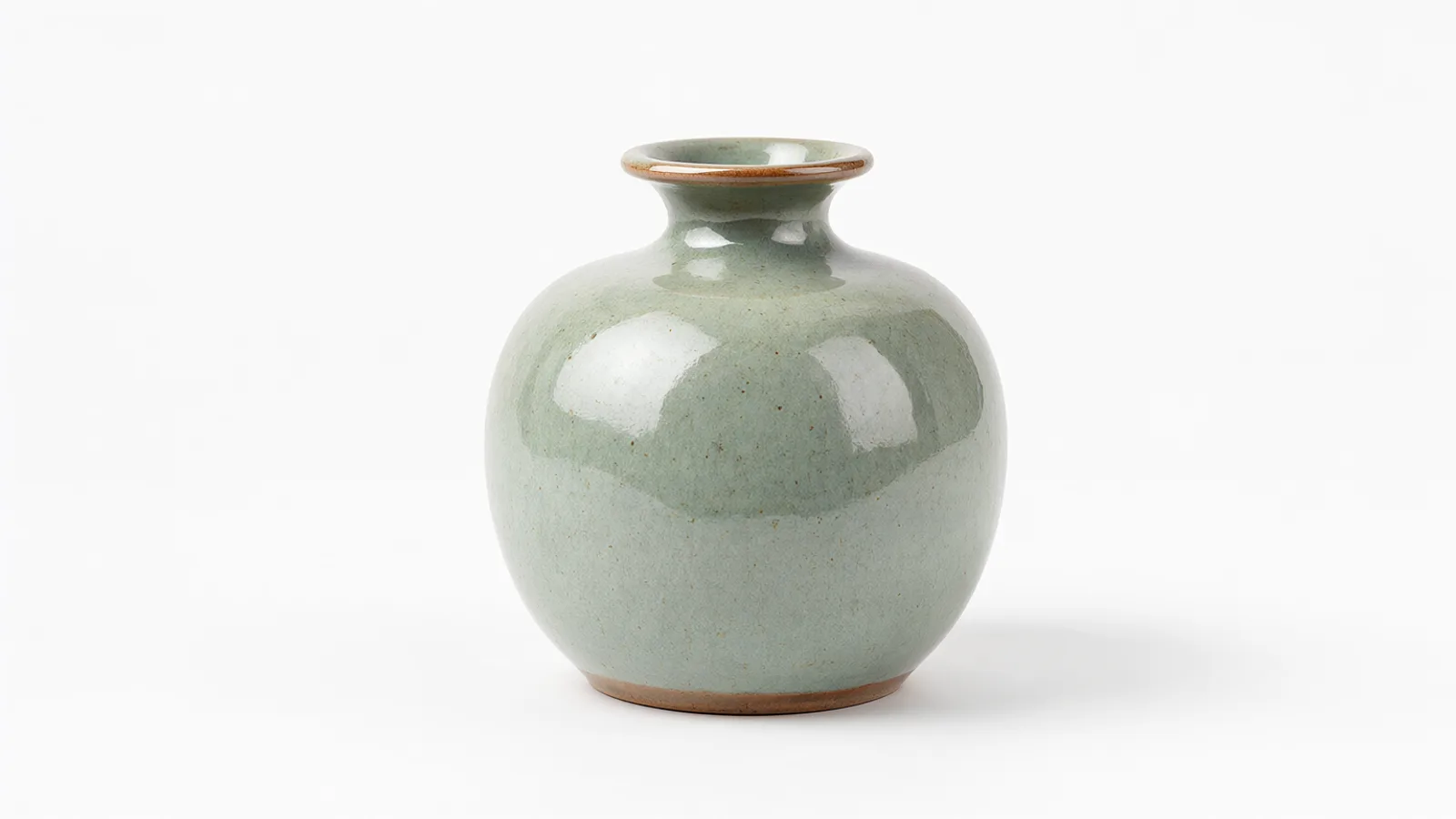
Show the prompt
A single product photograph of a ceramic vase on a plain studio table, soft even lighting from the side, the vase cleanly isolated against a pure white background, wide landscape composition, sharp focus on the object edges, no text or logos.
Qwen Image 2.1 and RMBG 3.0 both remove backgrounds from photos and output transparent PNGs. The quickest route is the dedicated Remove Background tool on OpenSourceGen. For local control the same Qwen model runs in ComfyUI with a 4-step LoRA, while rembg and RMBG 3.0 provide fast CLI or library options. This guide gives the exact settings and prompts that work today.
Why Qwen Image 2.1 for background removal
Qwen Image 2.1 removes backgrounds from photos when paired with its 4-step Fun-Acc LoRA. The LoRA reduces inference from the usual 25 steps to four while keeping output quality. Qwen-Image 2.1 Background Removal describes the exact files and sampler settings that produce this speed gain.
The workflow needs these four files:
- qwen_image_2.1_int8_convrot.safetensors (~7 GB)
- qwen3vl_8b_int8_convrot.safetensors
- qwen_image_2.1_vae_bf16.safetensors
- Qwen-Image-2.1-Fun-Acc-4Step.safetensors
Load the LoRA at strength 1.0. The model always returns a transparent PNG. Bypass the ImageScaleBy node or set scale_by to 1.0 if you want the native resolution without the default 2× lanczos upscale.
RMBG 3.0 finishes in a few seconds per image. Bria Docs: RMBG 3.0 is live notes that the model does not accept prompts and is tuned for edge quality rather than speed. Qwen Image 2.1 with the 4-step LoRA trades a small amount of edge precision for full prompt control and the ability to name the subject to keep.
Fastest way: Remove Background tool on OpenSourceGen
OpenSourceGen's Remove Background tool runs Qwen Image 2.1 directly on uploaded photos and returns a full-resolution transparent PNG. It accepts the exact prompt from the Qwen workflow and needs no local setup or model downloads.
- Open the Remove Background page.
- Upload the source photo (JPEG or PNG).
- Type the prompt "Remove the background, and output a PNG image".
- Replace the prompt text with the exact object name you want to keep.
- Submit the request.
The tool returns a single transparent PNG at the original resolution. The output preserves fine edges on hair and clothing because the underlying model was fine-tuned with the 4-step Fun-Acc LoRA.
Prompt options
- Keep the main subject only: use the default prompt.
- Keep a named object: replace the prompt with "Remove the background, keep only the red jacket, and output a PNG image".
Upload your photo to the Remove Background tool and receive a full-resolution transparent PNG powered by Qwen Image 2.1.Remove Background →
ComfyUI workflow and exact settings
The Qwen Image 2.1 background removal workflow in ComfyUI uses a 4-step LoRA to cut inference time from the usual 25 steps. Load the four required models: qwen_image_2.1_int8_convrot.safetensors (~7 GB), qwen3vl_8b_int8_convrot.safetensors, qwen_image_2.1_vae_bf16.safetensors, and Qwen-Image-2.1-Fun-Acc-4Step.safetensors the model card.
Required models
- qwen_image_2.1_int8_convrot.safetensors
- qwen3vl_8b_int8_convrot.safetensors
- qwen_image_2.1_vae_bf16.safetensors
- Qwen-Image-2.1-Fun-Acc-4Step.safetensors (LoRA)
Apply these exact sampler settings in the workflow.
steps: 4
cfg: 1
sampler_name: euler
scheduler: simple
lora_strength: 1.0
upscale: 2× lanczos
output: PNG
The 4-step LoRA enables fast inference while the low CFG and Euler/simple combination keeps edges clean for transparent cutouts. The workflow produces a transparent PNG by default. Bypass the upscale group entirely or edit the scale_by value on the ImageScaleBy node to keep the original resolution or choose a different factor.
People often run the default 25-step sampler with this LoRA and receive no speed gain. Set the sampler exactly as listed and keep LoRA strength at 1.0 to match the release benchmarks.
Worked example and prompt patterns
Upload a photo of a person standing in a cluttered room to the Qwen Image 2.1 background removal workflow. The prompt "Remove the background, and output a PNG image" produces a transparent PNG that keeps only the person.
Subject-only mode uses the short prompt above and lets the model decide the main subject. Named-object mode adds a specific description to keep extra elements.
Subject-only mode
- Prompt: Remove the background, and output a PNG image
- Result: Transparent PNG of the person only; room elements drop out automatically.
Named-object mode
- Prompt: Remove the background, keep the person and the red chair, and output a PNG image
- Result: Transparent PNG that retains both the person and the named chair.
Remove the background, and output a PNG imageThe model follows the first image's aspect ratio and returns a full-resolution PNG. Bypass the upscale node in the workflow if you need the exact original pixel dimensions. Test both modes on the same photo to see which matches your asset needs.
Common mistakes and fixes
Three frequent problems appear when removing backgrounds: soft or jagged edges on hair and glass, PNG files that still contain a white background instead of transparency, and coloured fringes along cut edges.
Low edge quality on hair, fur or glass
RMBG 3.0 ranks first on 185 of 234 hard test images for edge quality and wins or ties on subjects with fine detail. Switch to it when the subject has visible strands or transparent objects. It processes each image in a few seconds and needs no prompt.
Missing transparency in the output
Qwen Image 2.1 and rembg both write transparent PNGs when the pipeline is set correctly. Force the output format to PNG in the save step or add the -om flag with rembg. Bypass any upscale group in the Qwen ComfyUI workflow if the final file still shows an opaque background.
Colour fringing around the subject
rembg can leave a thin coloured halo on soft edges. Run the command with the colour-decontamination flag:
rembg i -m birefnet-general -dc input.png output.pngThe -dc option removes the fringe while the chosen model (u2net or birefnet-general) keeps the mask clean. Test the same image with and without the flag to confirm the difference.
RMBG 3.0 for highest edge quality
RMBG 3.0 produces the cleanest cutouts on difficult edges. It wins or ties the best result on 185 of 234 hard test images and leads preference scores against BiRefNet and remove.bg. The model excels at hair strands, fur, glass, and fine detail because it was trained only on licensed data.
Processing takes a few seconds per image. This is slower than RMBG 2.0 but the quality gain is clear on final assets that need visible edges. RMBG 3.0 does not accept prompt guidance, so it works best when the subject is the dominant object in the frame.
Bria API usage
Add the model parameter to the remove_background endpoint:
{
 "image": "base64_or_url",
 "model": "RMBG3"
}
Do not include a prompt field; the endpoint rejects any combination of prompt and RMBG3. The output is a transparent PNG at the original resolution.
Choose RMBG 3.0 when the photo contains hair, pets, or transparent objects and you need the highest edge accuracy. Use RMBG 2.0 only for high-volume interactive previews where speed matters more than the last 5 % of detail. Bria's release notes list the exact benchmark numbers and current API limits.
rembg CLI and Docker options
rembg supplies a Python CLI and Docker images that run background removal on CPU or GPU without a web interface. Install the package with GPU support on Python 3.11–3.13 via the command below.
pip install "rembg[gpu]"The basic command removes the background of a single file and writes a transparent PNG.
rembg i -m u2net input.png output.pngThe -m flag selects one of sixteen supported models. Choose u2net or birefnet-general for everyday photos, birefnet-portrait when the subject is a person, and isnet-anime for illustrated characters. The default model in recent releases is bria-rmbg.
Add -a to enable alpha matting for softer edges, -dc to remove colour fringing on hair or glass, and -om to output only the mask instead of the cutout. Docker and HTTP server modes are also provided for batch or service use.
The GitHub repo supplies the full flag list and installation notes for ROCm and CUDA backends. These options give precise control when the web-based Qwen tool is unavailable or when colour decontamination is required.
FeyNoBg and NoBg library route
FeyNoBg runs BiRefNet with an expanded third stage of 24 blocks for 263 M parameters. It leads S-measure on four of eight benchmarks, including DIS5K, after training on a 26.1 K image mix.
Install the NoBg library that ships with it. The library gives a single interface for inference and fine-tuning.
from nobg import AutoModel, post_process_alpha_matting

model = AutoModel.from_pretrained("feyninc/FeyNobg")
alpha = model.predict(image)
cutout = post_process_alpha_matting(image, alpha)
cutout.save("output.png")
The post_process_alpha_matting call resizes the alpha mask to the original image dimensions before the final cutout. This step prevents edge misalignment on high-resolution photos.
Training data combined MaskFactory synthetic masks with at most 4 K images per source from ten public datasets; all matting sets were converted to binary masks for consistency.
Use this route when you need the highest measured edge accuracy on hair, fur and glass without a prompt. The model ships as a single checkpoint and runs on the same GPU backends supported by rembg.
Frequently asked questions
Which model gives the cleanest hair and glass edges?
RMBG 3.0 ranks first on 185 of 234 hard test images for edge quality on hair, fur and glass. It uses fully licensed training data and outputs a cutout in a few seconds.
Can I run the Qwen background removal workflow locally?
Yes. Load qwenimage2.1int8convrot.safetensors plus the Fun-Acc LoRA in ComfyUI, set 4 steps, cfg 1, euler/simple and strength 1.0. The workflow produces a transparent PNG.
Does rembg need a GPU?
rembg runs on CPU but the GPU package is installed with pip install "rembg[gpu]". It supports CUDA and ROCm and works with Python 3.11 to 3.13.
What prompt should I use with Qwen Image 2.1?
Type exactly "Remove the background, and output a PNG image". You can also name the subject you want to keep for more control.
Remove a background in seconds
Upload your photo to the Remove Background tool and receive a full-resolution transparent PNG powered by Qwen Image 2.1.
Open Remove BackgroundSources
Researched and drafted with AI assistance by the OpenSourceGen team's editorial pipeline, from the sources listed above. Model licences, prices and versions change — check the linked pages before relying on them. Spotted a mistake? Tell us on Discord.